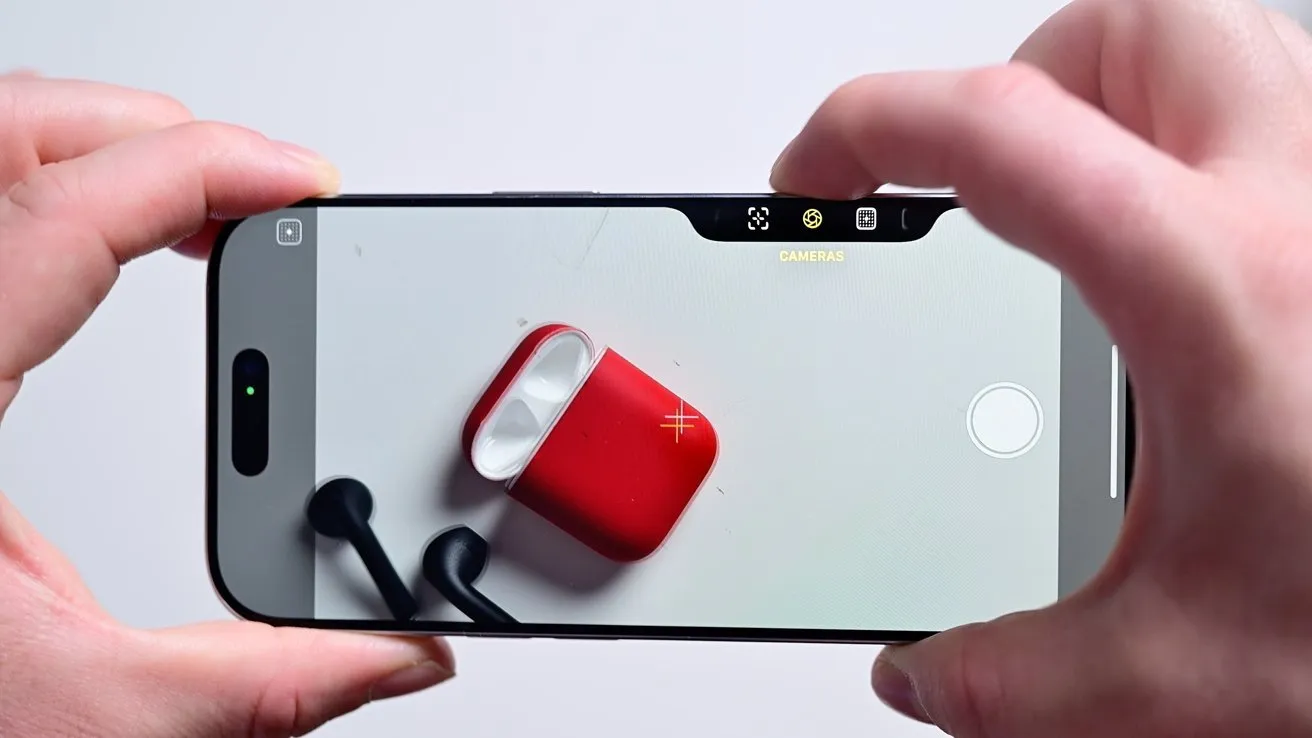
The iPhone 17 camera control button feels cool at first, but it can become annoying once you use it.
By default tapping once will open the camera app. Tap again to take the photo. Touch and hold to record video.
If you are using the camera frequently, this arrangement is acceptable. If not, then it is possible to accidentally hit the button, and to be thrown off.
The good news is that you can do iPhone 17 camera customization or turn it off.
How to change what the iPhone 17 Camera Control button does
Apple designed the button to be used by everyone but reality doesn’t work like that.
You may accidentally press it and the camera opens up. Or you may prefer a different application such as scanning QR codes.
With the iPhone 17 camera button settings you can customize the button to suit your needs. You’re not cursed with the default
How to Use It in QR Code Scanning
If you scan QR codes regularly, making the button a full-time scanner is not a waste of time.
Here’s how to set it up.
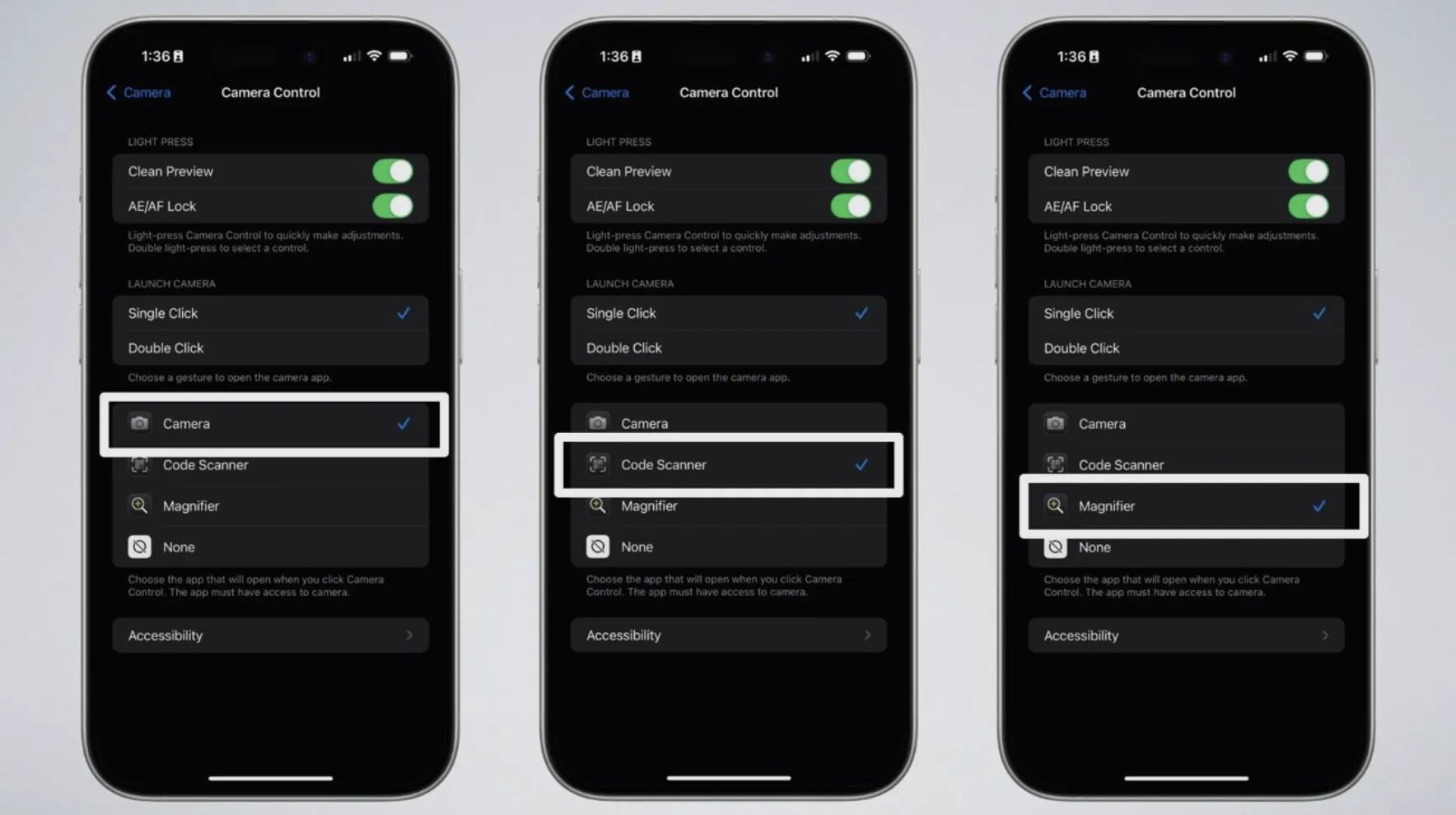
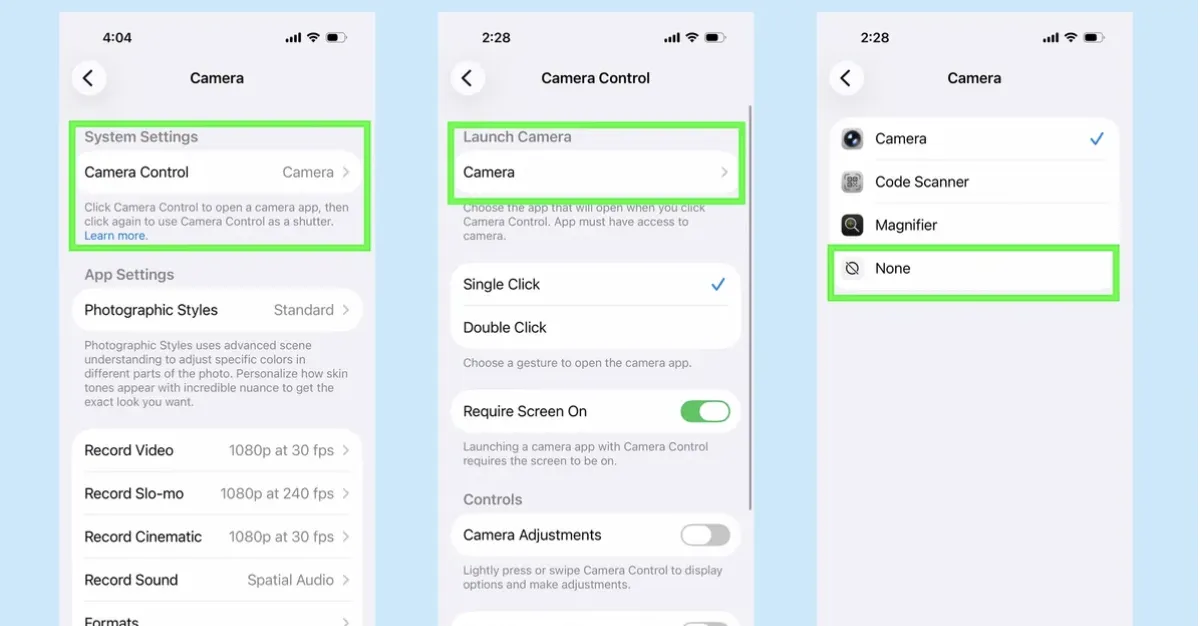
1. Open Settings. Scroll down to Camera and tap it, and tap on Camera Control.
2. Choose Code Scanner from among them.
3. Now when you tap on the button instead of opening the normal camera, it opens the scanner.
4. Point it at a QR code and it serves it instantly.
5. No photo or additional steps required.
Fast and efficient all day scanning.
How to Use the Magnifier App Instead
If you have a problem with small text, then the Magnifier app can help. It uses the camera to zoom into menus, or labels, or prescription bottles.
➤ To enable it, go to Settings – Camera – Camera Control. Choose a Magnifier.
When you now press the button the Magnifier is opened. Pinch to zoom in or out. It’s a digital magnifying glass.
If you tend to squint to pick out small print, this is a customization that makes it easier to read.
How to Turn the Button Off Entirely
If you want the button not to do anything disable it
You can turn it off.
➤ Go to iPhone 17 camera button settings > Accessibility. Under the Physical and Motor, tap Camera Control.
➤ Switch off the Camera Control switch. The button will no longer be usable
➤ Need it back later? Flip the switch on again.
In the same menu you can adjust the pressure sensitivity in case you leave it on. Some users like the firm press to relieve from accidental triggers.
Change It Up to Double-Click Instead
If you like the button, but start pressing unintentionally, change to double-double mode.
➤ Go to Settings –> Camera –> Camera Control Under Launch Camera, change from Single Click to Double Click.
Now a double press is needed to open the camera and will make it relatively difficult to accidentally reach it.
Final Thoughts
The iPhone 17 button remapping gives you control over a feature Apple assumed would work the same for everyone.
Choose what suits you: scan codes, magnify text or have it switched off completely.