Facebook Messenger archive tends to easily trickle down and fill quickly with older messages and become an unstructured, unorganized inbox of messages that are no longer considered as having a need.
However, it is not usually the desire of users to eternally destroy such content because some useful information can be entrenched in the messages or they just want to cover them without losing the content forever.
The archive feature is thus used to hide rather than delete conversations thus allowing access to archived messages where and when needed, normally within seconds.
So to learn How to View Archived Messages on Facebook Messenger? Keep on reading.
What Does Archiving Do?
In the case of an archived chat, the message is unread, yet it does not mean that it is lost, with the message content being transferred to a separate folder, defined by Facebook Messenger storage architecture.
This function can be likened to storing documents in a drawer instead of disposing them; the content is there and at the same time the working space is clear.
Moreover, when a user sends a new message into an archived message, the conversation will just be back in the main inbox, re-instating visibility on the same.
How to View Archived Messages on Facebook Messenger
The process is similar no matter if the device is an iPhone or one that uses Android. The procedure of finding stored chats on Messenger follows the following:
1. Open Messenger and choose the profile picture in the left hand corner of the application.
2. This move gives a settings menu that has several options.
3. To Find archived chats on Messenger, Find the option that is called Archived Chats and tap it.
4. History of discussions is given in this area.
5. All the archived chats will be put down on a comprehensive list; when an entry is chosen, a user will be able to scroll through its contents.
6. In order to resend a Messenger archived conversations to the primary inbox, one has to merely compose a new message to that chat.
7. The system will reintroduce the dialogue, which will automatically be unarchived to the user, among his or her active conversations.
8. Archived messages are stored on the web, which means the message can be viewed.
9. In the case of Facebook Messenger archived messages on a desktop or a laptop, few steps are changed but are not very complicated.
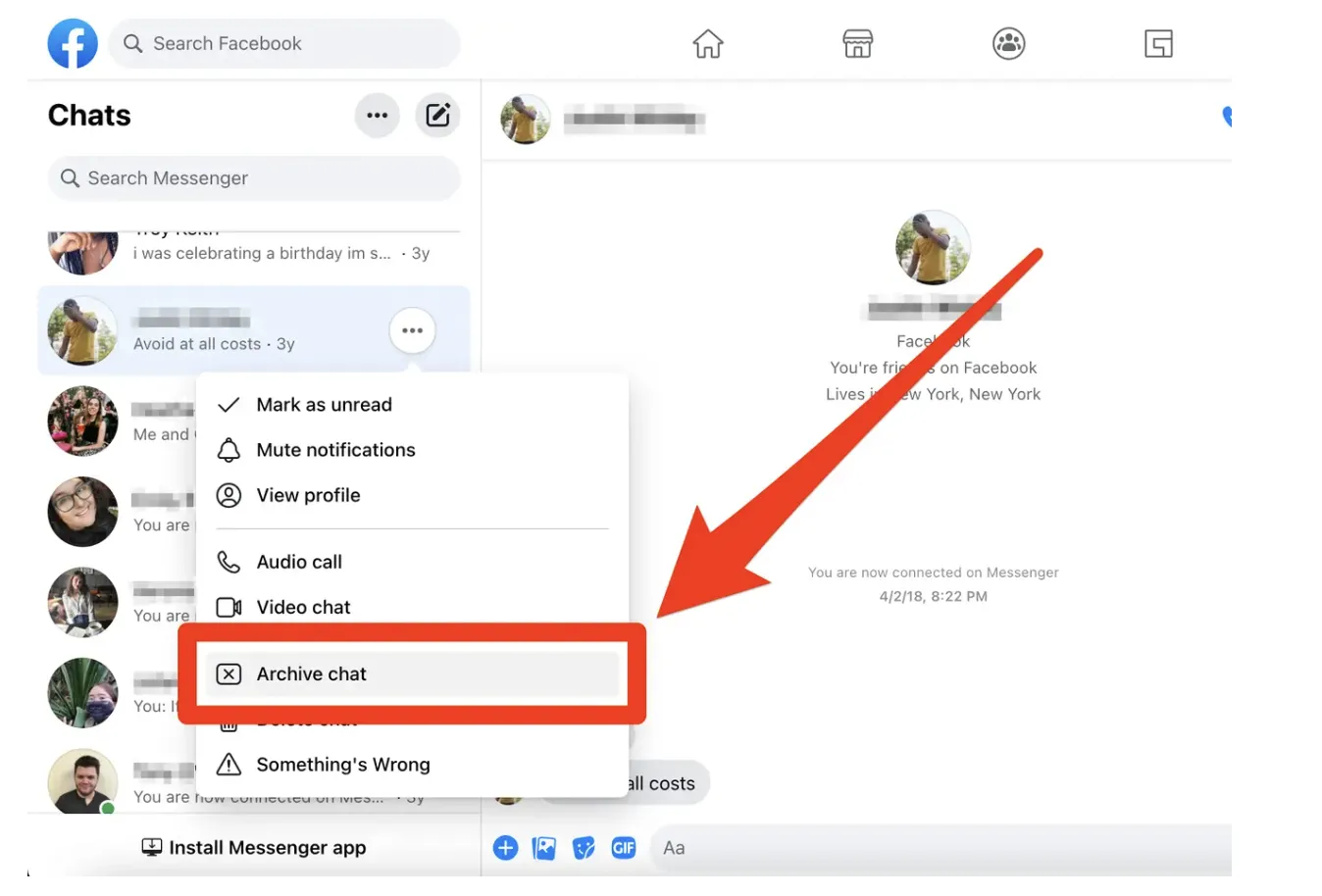
Enter the Facebook accounts and press the icon of the messenger, which is located in the upper right-hand side. A small chat window appears and it displays the most recent conversations.
There are three dots in succession within the upper right corner of that window. To the left of them, there is a dropdown with a number of options.
Click the option Archived Chats in the list and the sidebar will reflect the archived conversations of the user.
The opening of any chat by clicking allows one to read earlier messages or new ones to start. Remember when sending a message the conversation will be moved to the inbox.
When Should You Archive?
Unnecessary conversations that might be relevant in the future, like the outdated group discussions, communication with people no longer in contact with the person, or with people who possess valuable data, are good candidates to be archived.
Careful not to save a conversation that is currently under discussion; in case there has been frequent interactions, it should then be kept in the inbox to avoid a situation where people are used to unarchiving.
Final Thoughts
The way to access archived messages on Messenger is not complicated as long as the user knows the necessary navigation points.
Whichever the platform, searching archived chats takes less than one minute, and this after mastering it, it provides a clean inbox and still records critical conversations.