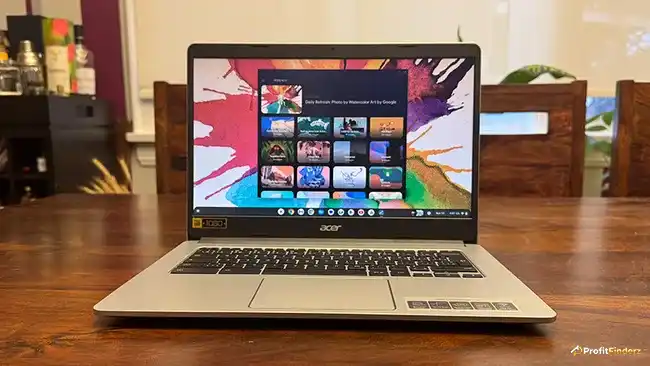
Chromebooks are often perceived as boring by many users, and honestly, they’re not completely wrong. ChromeOS is built to be simple, clean, and easy to use, which is probably why people arrive at that conclusion. What many don’t realize, however, is just how easy it is to personalize ChromeOS. From wallpapers and themes to appearance settings, ChromeOS is equipped with plenty of customization options to match the vibe you want.
So, whether you’re studying, working, or simply trying to be entertained, Chromebooks give you lots of ways to create fun and personalized designs. You can customize both your desktop wallpaper and your Chrome browser theme in just a few simple steps.
How to Change Wallpaper on a Chromebook
The very first step to changing your Chromebook’s vibe is personalizing your wallpaper. It’s also one of the easiest things to do. ChromeOS already includes built-in wallpaper categories, giving you plenty of options to choose from, but you can always upload any photo you want as well.
To do this, simply follow these easy steps:
1 Using your mouse or trackpad, right-click anywhere on the desktop screen.
2 Once the panel appears, select Set wallpaper & style.
3 Click Wallpaper.
4 Browse through the available wallpaper categories.
5 Select a wallpaper you like, and the change will apply instantly.
If you’d rather use a personal photo, you can also upload an image from your Chromebook storage and set it as your wallpaper instead.
In addition to static wallpapers, ChromeOS also includes a feature that allows your wallpaper to change daily. This automatically rotates wallpapers from a selected category each day, keeping your Chromebook looking fresh and new without having to manually change it yourself.
Customize Chromebook Appearance
Setting your wallpaper doesn’t end there, because inside the Wallpaper & Style menu, you can tweak other visual settings to better match the theme you want. There, you can either change accent colors, switch between Light and Dark mode, or customize screensavers.
Dark mode, in particular, has gained significant popularity because it gives Chromebooks a more modern and sleek look.
How to Turn On Night Light
Chromebook’s Night Light feature works best for users who often work late at night. It reduces blue light and warms up your display colors, helping prevent eye strain even after hours of use.
To enable Night Light:
1 Click the time in the bottom-right corner of your screen to open Quick Settings.
2 Click Settings.
3 In the left-hand menu, select Device.
4 Click Display.
5 Turn on Night Light.
You can also adjust the color temperature from warm to cool or schedule Night Light to activate automatically during certain times of the day.
How to Change Chrome Browser Themes
The desktop wallpaper is just the first step; the next is changing the browser’s appearance itself. By doing this, you can customize the color of your tabs, toolbar, and even the background shown on new tabs.
To change Chrome themes:
1 Open your Chrome browser
2 Head over to the Chrome Web Store
3 Click on the Themes section.
4 Select a theme
5 Click Add to Chrome to apply it instantly
The theme will apply instantly once installed. You can easily remove it anytime by selecting Remove from Chrome.
How to Switch Between Light and Dark Themes in Chrome
To switch between Light and Dark browser themes, follow these steps:
1 Open Chrome.
2 In the top-right corner, click the three-dot menu.
3 Go to Settings.
4 Select Appearance.
5 Click Browser Themes.
Choose between Light, Dark, or Restore to Default.
Personalize Your Chromebook and Make It Truly Yours
Changing themes only takes a few minutes; it’s quite simple. Through this, you’re making your browser look better, which can potentially improve your productivity and mood while working. Good thing ChromeOS gives its users the freedom to be creative in every task.
Whether you are a student, a worker, or just someone who enjoys scrolling through the web from time to time, having a fresh browser appearance can make your Chromebook feel more enjoyable and fun to work with.