Google Chrome has always been the go-to browser for most people, but recent updates have quietly turned it into something far more useful than just a way to open websites. There are features sitting inside Chrome right now that most users have never touched, and they’re worth knowing about.
Before diving in, make sure you’re on the latest version. Click the three-dot menu in the upper-right corner, select Help > About Google Chrome, and install any available updates.
Here are five features worth trying.
1. Browse With AI Assistance
If you’re struggling to stay fully engaged during a research process, Chrome’s AI Mode helps you see search results and the web pages you’re browsing side by side. No more tab switching, because now you can respond to AI-generated comments and cite source material all in the same place.

2. Use Split View for Better Multitasking
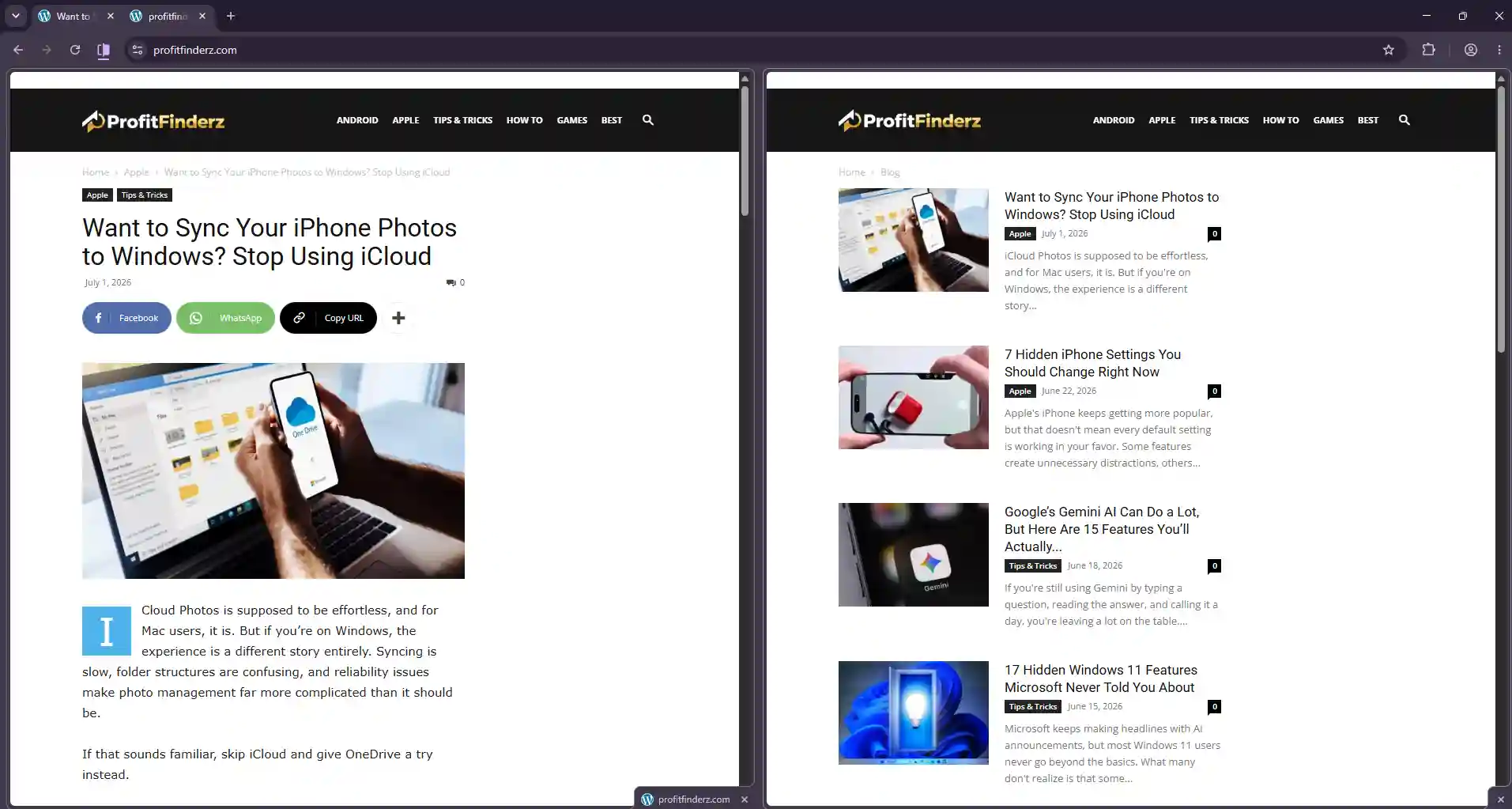
Split View is going to free up a lot of your time, especially if you constantly need multiple tabs open at once. It lets two web pages sit side by side inside a single browser tab, and both web pages are fully interactive and independently scrollable. Just right-click a tab, select Add tab to split view, and choose the second tab you want alongside it. You can drag the divider to resize or reposition it whenever needed as well.
3. Annotate PDFs Without Extra Software
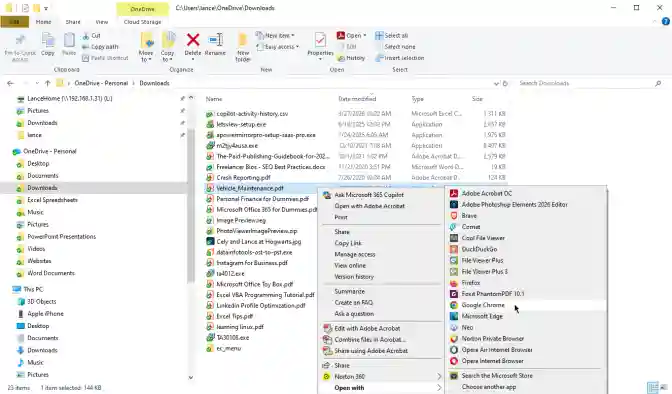
You don’t need a separate application to work with PDFs anymore because Chrome does it already. You can access any PDF in your browser and use tools to highlight, draw, and add remarks without downloading anything more. When you’re done, you can either save the file locally or you can simply upload it immediately to Google Drive.
4. Organize Your Workspace With Vertical Tabs
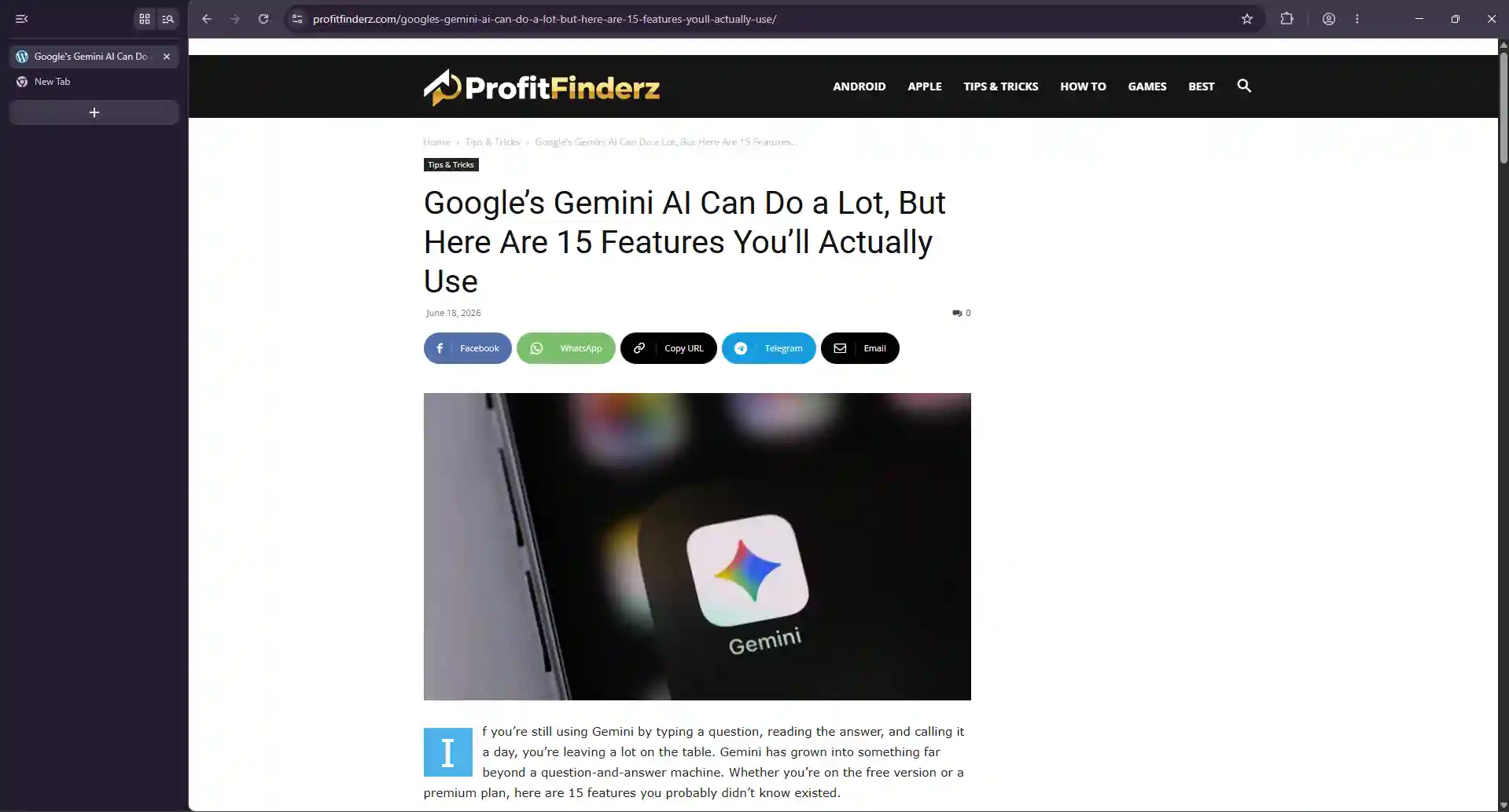
One of the biggest frustrations for busy Chrome users is the clutter of too many tabs crammed across the top of the browser. Vertical Tabs fixes that by moving them to a sidebar on the left, displaying more of each tab’s title so you can actually find what you’re looking for. To turn it on, right-click inside Chrome and select Show Tabs Vertically.
5. Read Articles Without Distractions
We all know how frustrating pop-ups can be. From notifications to ads, the clutter makes reading genuinely uncomfortable. Chrome’s Reading Mode solves this by stripping everything away and leaving you with just the content alone. Right-click any webpage and select Open in reading mode to turn it on, and if you want to go further, you can customize your reading experience by adjusting the font size, line spacing, and color themes to your liking.
A Smarter Way to Use Chrome
All of these features are already built into Chrome, just waiting to be turned on. If you’ve been using it the same way for years without exploring what’s new, consider this your sign to dig a little deeper and see what else it can do.