Apple’s iPhone keeps getting more popular, but that doesn’t mean every default setting is working in your favor. Some features create unnecessary distractions, others bury useful information, and a few just get in the way without you even realizing it. If you’re an iPhone user, here are 7 default settings you might want to change right now.
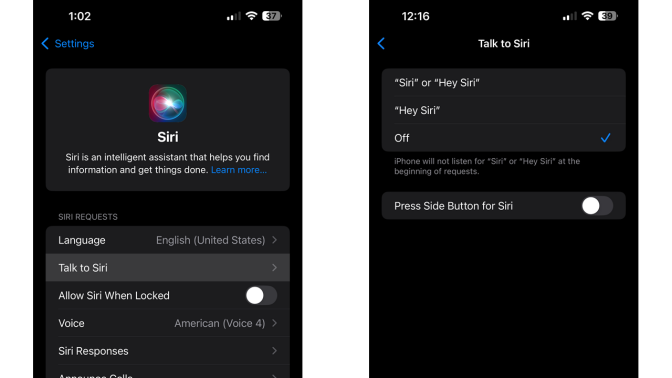
1 Disable Siri If You Rarely Use It
If you’re not a regular Siri user, having it active mostly means triggering it by accident at the worst possible times. Go to Settings > Siri > Talk to Siri and select Off to keep it out of the way entirely.
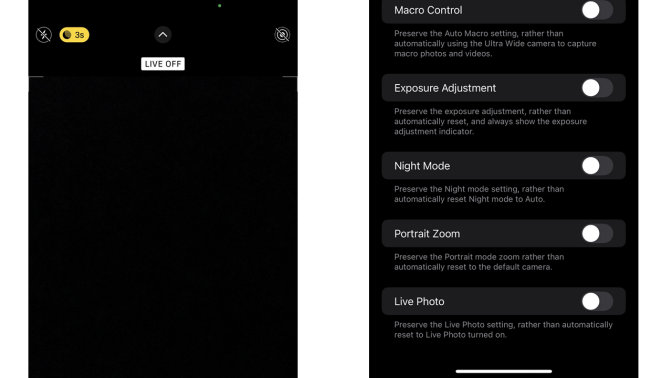
2 Turn Off Live Photos
Live Photos sound fun until you realize you’ve been accidentally recording audio and video with every single shot. Tap the Live Photos icon in the Camera app to turn it off, then go to Settings > Camera > Preserve Settings and enable Live Photo to make sure it stays off for good.
3 Prevent Your Screen From Sleeping Too Quickly
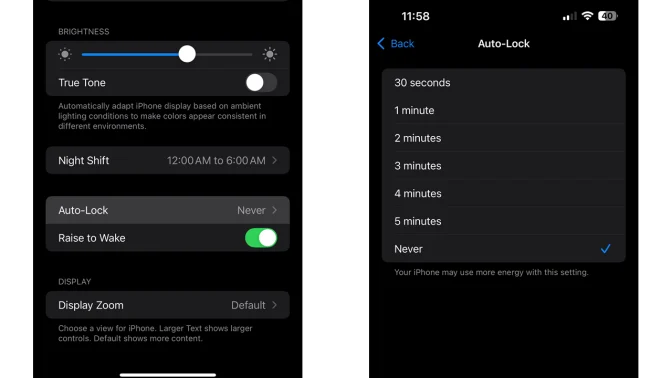
It’s normal for your iPhone to go dark after a few minutes, but it gets frustrating fast when you’re following a recipe or reading instructions mid-task. Go to Settings > Display & Brightness > Auto-Lock and choose a longer time period so your screen stays on when you actually need it to.
4 Show Your Battery Percentage
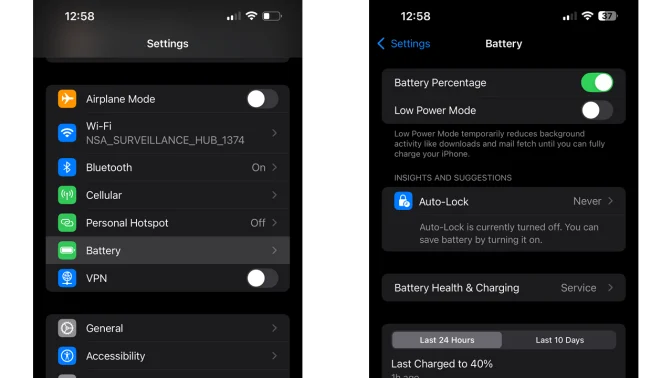
By default, the battery icon doesn’t tell you much. Go to Settings > Battery and turn on Battery Percentage so you know exactly how much power you have left at any given moment. While you’re there, check Battery Health & Charging as well to keep an eye on your battery’s long-term condition.
5 Stop Constant Update Notifications
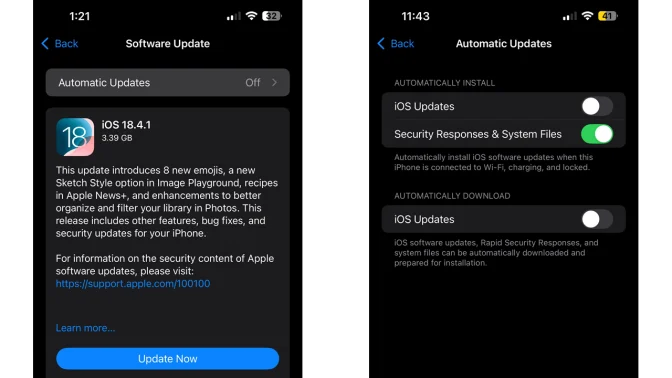
Repeated pop-ups reminding you to install the latest iOS update get old fast, and your phone will keep sending them until you turn it off. Go to Settings > General > Software Update > Automatic Updates > iOS Updates and switch it off. You can still update manually whenever you’re actually ready.
6 Eliminate Unnecessary Notification Badges
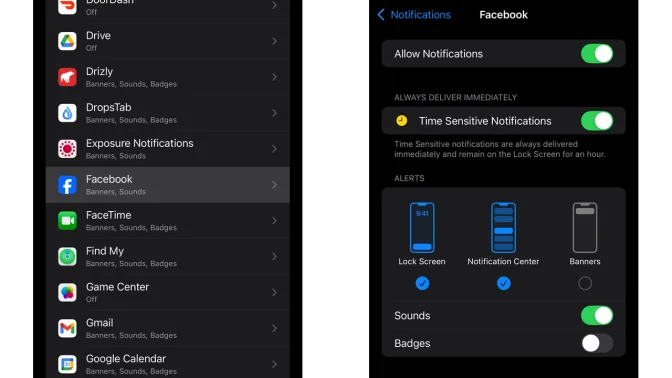
Those red circles on your app icons can be just as annoying as pop-up notifications. Go to Settings > Notifications, pick an app, and turn off Badges. Your home screen will instantly feel a lot cleaner and less overwhelming.
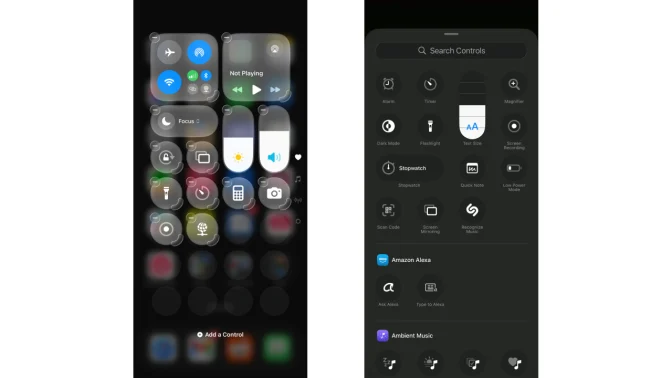
7 Customize Your Control Center
Control Center is one of the most useful parts of iOS, but most people never touch what Apple set up by default. What they don’t realize is that it can be fully reorganized. Swipe down from the top-right corner, long-press an empty area to enter editing mode, and rearrange everything to match how you actually use your phone. Put the things you reach for most somewhere you can find them quickly.
Small Changes, Big Difference
Everything on this list takes just a few minutes to fix. Small changes, minimal effort, but the difference they make is noticeable. Your phone wasn’t at its best when it came out of the box. So, that part is completely up to you.