
iCloud Photos is supposed to be effortless, and for Mac users, it is. But if you’re on Windows, the experience is a different story entirely. Syncing is slow, folder structures are confusing, and reliability issues make photo management far more complicated than it should be.
If that sounds familiar, skip iCloud and give OneDrive a try instead.
Why OneDrive Works Better on Windows
iCloud and OneDrive do essentially the same thing; automatically sync your photos to the cloud. The difference is that OneDrive’s Windows integration is significantly stronger because it’s built directly into Microsoft’s operating system. No third-party compatibility issues, no extra steps. It just works.
How to Set It Up
Getting started with OneDrive is straightforward. Here’s what you need to do:
1 Install the OneDrive app
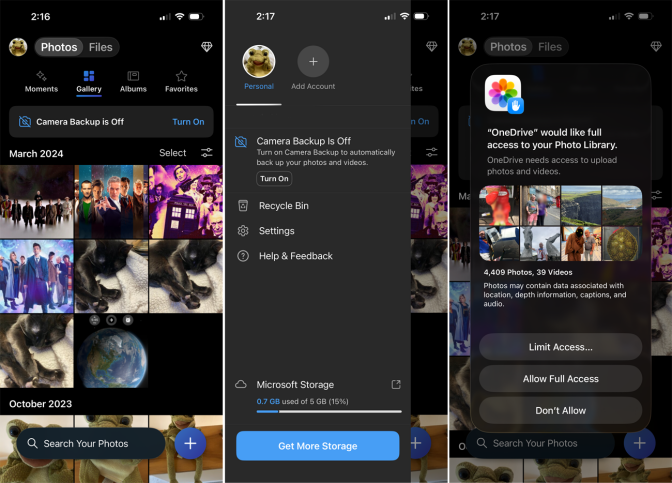
- Install the app on your iPhone and sign in with your Microsoft account
- Open the app, turn on Camera Backup, and OneDrive will automatically upload new photos and videos whenever your phone is connected to the internet.
2 Clean Up Your Photo Library First
- Before turning on automatic backups, spend a few minutes going through your library.
- Delete duplicates, blurry shots, and anything you don’t need to reduce the cloud storage you’ll use and make everything easier to manage going forward.
3 Set Up OneDrive on Your Windows PC
- Make sure OneDrive is installed on your PC and signed into the same Microsoft account.
- Open the settings and confirm that your Pictures folder is included in the backup.
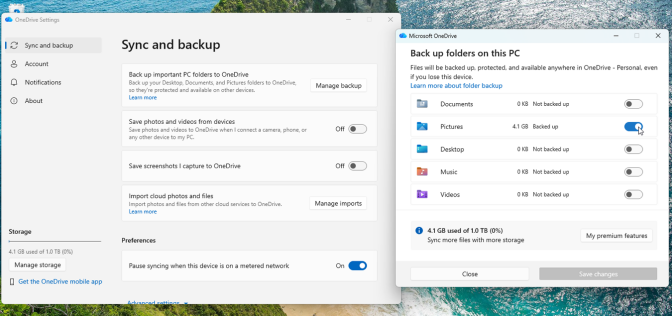
- Once syncing is complete, your iPhone photos will appear inside the OneDrive folder in File Explorer, organized by year and month.
4 Make Your Photos Available Offline
- By default, the files will stay stored in the cloud, but it will be downloaded when you open them.
- If you want your entire library available offline, right-click the folder and select Always keep on this device. Windows will download local copies of everything.
The One Limitation Worth Knowing
For most people, this setup is enough. Photos back up automatically and become accessible on Windows without needing iCloud. There is one limitation worth knowing about, though.
Unlike Apple’s ecosystem, changes made to photos in OneDrive don’t always sync back to your iPhone cleanly. Renaming, deleting, or editing a file on your PC might not automatically be updated on your Apple device.
Total Control If You Need
To get around this, you can go an extra step and organize your photos into specific folders on your PC instead of relying exclusively on Camera Backup. You can rename and edit files locally and then sync those folders back to your iPhone using iTunes or Apple’s Devices app. It’s more work, but it allows you much more control over how everything is organized.
Is the Switch Worth It?
Like any other platform, OneDrive is not perfect, but for Windows users, it still provides a more seamless experience. If your main computer runs Windows, making the switch could be the most efficient decision you make when it comes to managing your iPhone photos.